

What you’ll learn
This tutorial shows you how to connect Claude Desktop or Cursor to the CoinPaprika MCP Server to access real-time cryptocurrency data. By the end, you’ll have live crypto market information available directly in your AI conversations.Prerequisites
Before connecting to the CoinPaprika MCP server, ensure you have:- Claude Desktop or Cursor installed on your system
- Basic familiarity with configuration files
- Stable internet connection
Quick Configuration
Claude Desktop
Locate your configuration file
Find your Claude Desktop configuration file:
- macOS:
~/Library/Application Support/Claude/claude_desktop_config.json - Windows:
%AppData%/Claude/claude_desktop_config.json - Linux:
~/.config/Claude/claude_desktop_config.json
Add the MCP server configuration
If the file doesn’t exist, create it with this content:If the file already exists, add our server to the existing 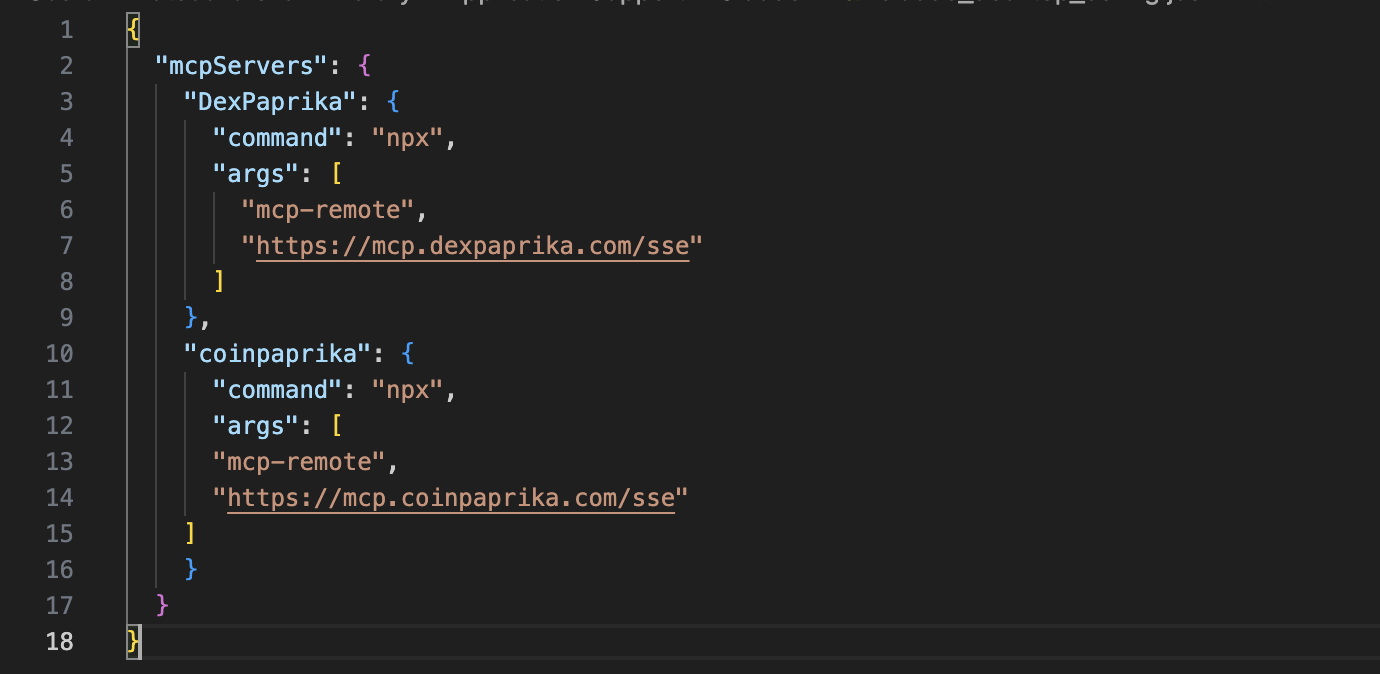
mcpServers object:Cursor
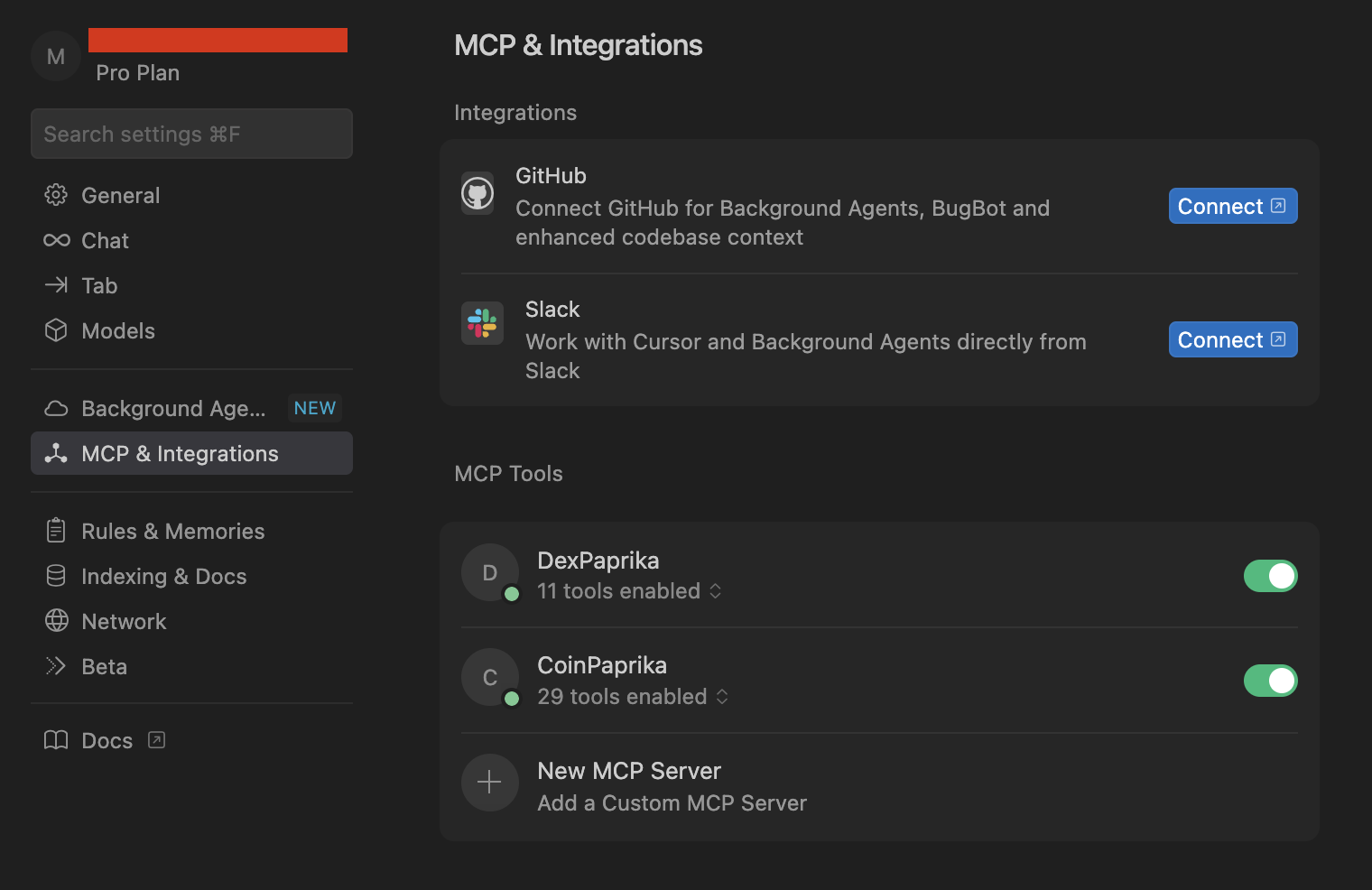
Open Cursor settings
- In Cursor, go to Settings (Cmd/Ctrl + ,)
- Navigate to Tools & Integrations in the left sidebar
- Click New MCP server
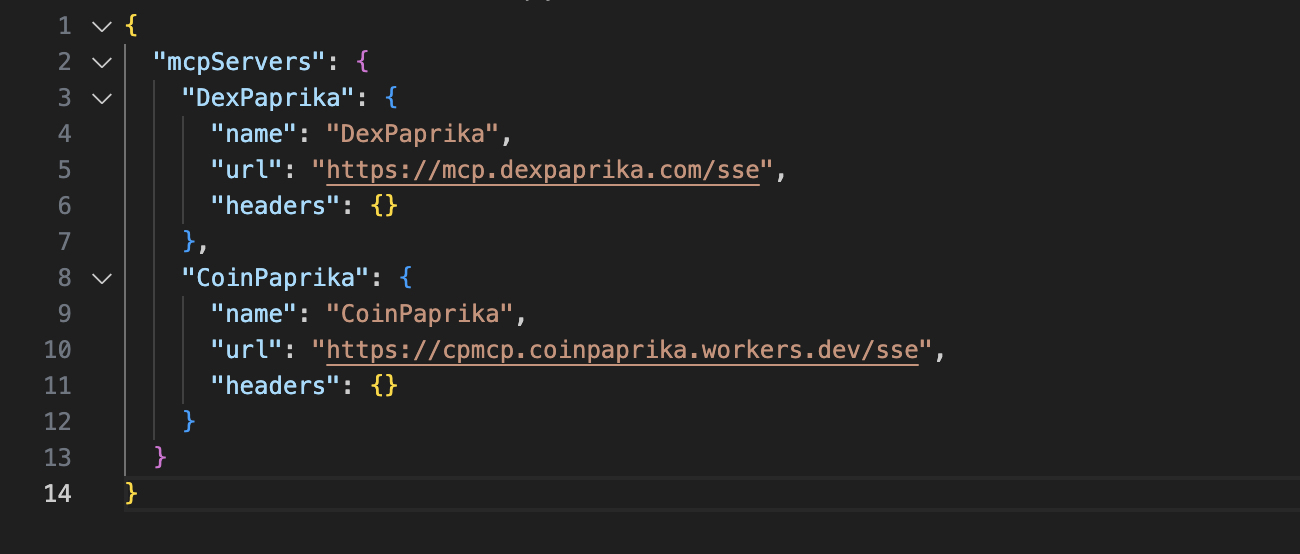
Verification
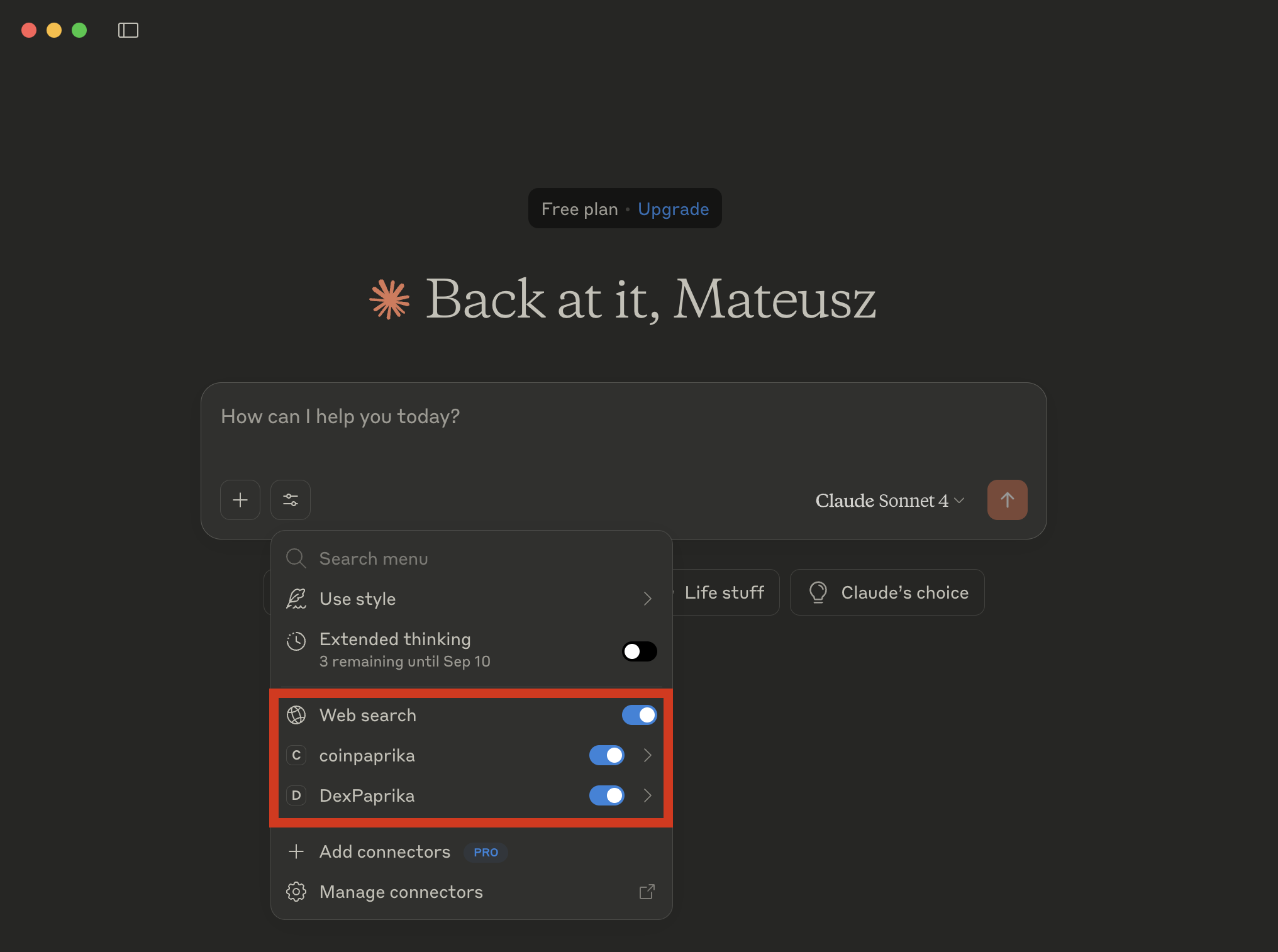
After restarting, you should see:- CoinPaprika tools available in your AI assistant
- Cryptocurrency data access through natural language queries
- Real-time market information at your fingertips
Example Usage
Once connected, you can ask questions like:Basic market data
- “What’s the current price of Bitcoin?”
- “Show me the top 10 cryptocurrencies by market cap”
- “What’s the 24-hour volume for Ethereum?”
Advanced queries
- “Search for tokens related to DeFi”
- “Compare the market caps of Bitcoin and Ethereum”
- “What are the biggest gainers in the last 24 hours?”
Portfolio analysis
- “How has my portfolio performed today?”
- “What’s the total market cap of all cryptocurrencies?”
- “Show me the correlation between Bitcoin and altcoins”
Troubleshooting
Tools not appearing
Tools not appearing
Symptoms: CoinPaprika tools don’t show up in your AI assistant.Solutions:
- Ensure you’ve restarted the application after configuration
- Check that the configuration file syntax is valid JSON
- Verify the
mcp-remotepackage is available via npx - Try removing and re-adding the MCP server configuration
Connection errors
Connection errors
Symptoms: Getting connection timeouts or errors.Solutions:
- Check your internet connection is stable
- Verify the MCP server is operational at status.coinpaprika.com
- Ensure no firewall is blocking the connection
- Try using the JSON-RPC endpoint instead:
https://mcp.coinpaprika.com/json-rpc
Configuration file not found
Configuration file not found
Symptoms: Can’t locate the configuration file.Solutions:
- Create the directory structure if it doesn’t exist:
- macOS:
mkdir -p ~/Library/Application\ Support/Claude/ - Windows: Create the
Claudefolder in your%APPDATA%directory
- macOS:
- Create the configuration file manually
- Ensure proper JSON syntax
What’s Next?
Now that you’re connected:Learn JSON-RPC Usage
Make direct API calls to our MCP server with practical examples
Explore Available Tools
Discover all the cryptocurrency data tools at your disposal
Need Help?
Join Our Discord
Connect with our community for real-time support and discussions
Direct Support
Contact our team for technical assistance and custom integrations
Building something amazing? Share your CoinPaprika MCP integrations with our community! We love seeing what developers build with our tools. Reach out to showcase your work.